The best LinkedIn Chrome extensions for messages, posts and prospecting
Useful LinkedIn Chrome extensions grouped by job — replying to messages, writing posts, finding contact details — and which ones can put your account at risk.

The LinkedIn Chrome extensions worth installing do one of three jobs: help you write (AI Reply Writer for messages and comments, AuthoredUp for formatting posts, Grammarly for proofreading), find contact details (Apollo.io, Lusha, Kaspr), or plan content. Avoid tools that send connection requests or messages automatically: LinkedIn's User Agreement prohibits bots and automation, and accounts that use them can be restricted.
Before you install anything: the automation rule
LinkedIn's User Agreement does not allow software that automates activity on the site — sending connection requests, messages or profile visits on your behalf, or scraping profiles. Accounts using that kind of tool can be restricted or banned.
So the safest extensions are the ones that help you do something, while you still do it: a draft you edit and send, a post you format, a contact detail you look up. Everything in this list works that way except where noted.
Writing messages, comments and posts
1. AI Reply Writer — replies to messages and comments
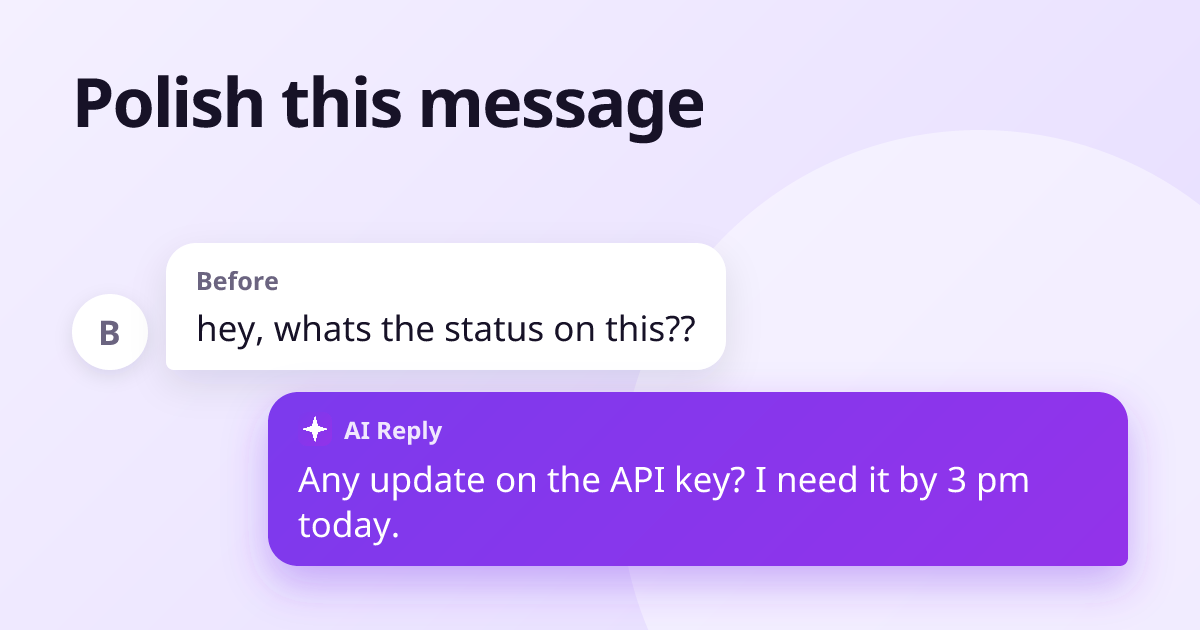
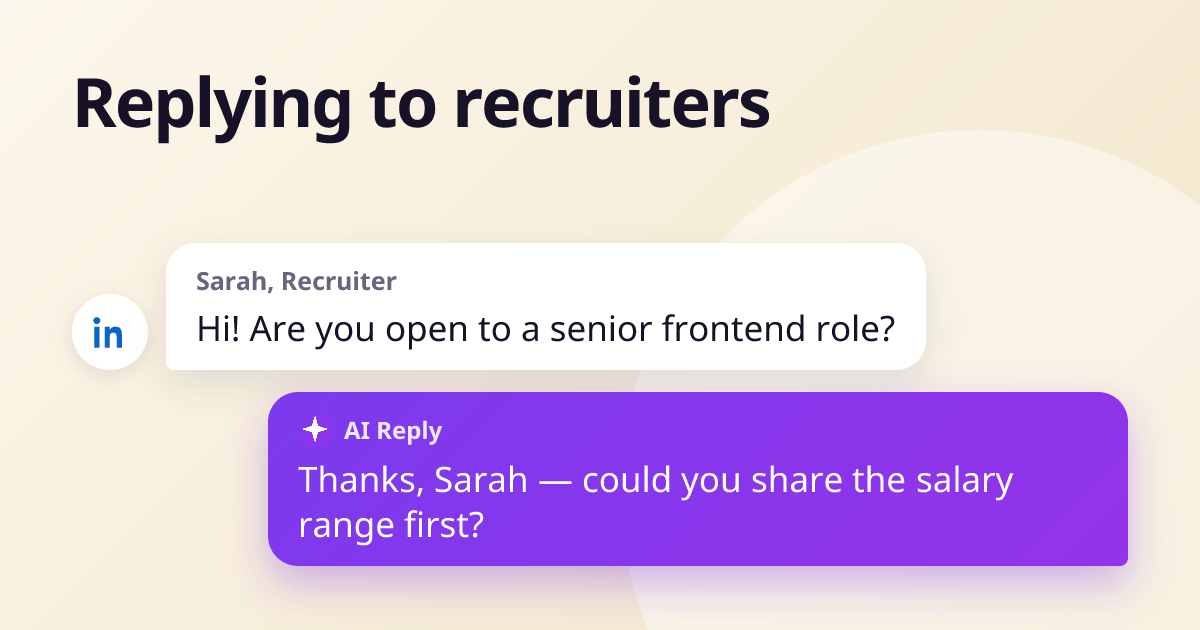
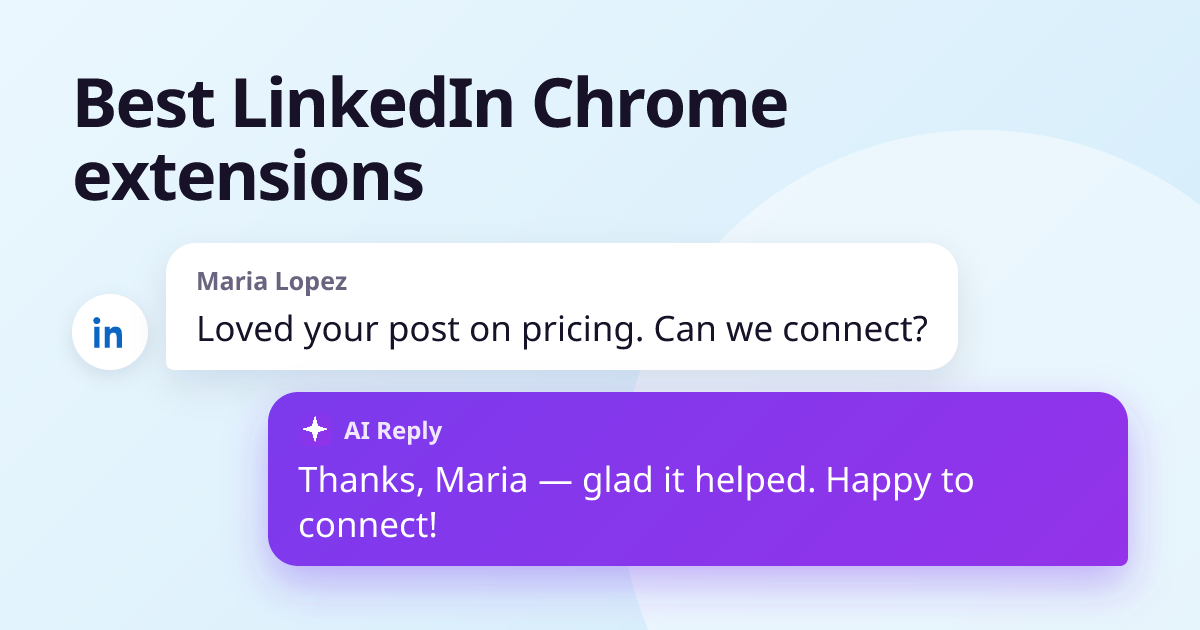
AI Reply Writer adds an ✦ button to LinkedIn's message box and comment fields. It reads the conversation or the post you are commenting on and drafts a reply in your tone; you edit it and press Send yourself. It also drafts a first message from a profile you are viewing. It never sends anything on its own, which keeps it on the right side of LinkedIn's automation rules. The same button works on 23 sites, and the free plan includes 20 replies a month.
Replying to recruiters is one of the commonest uses — see our recruiter reply templates.
2. AuthoredUp — formatting and previewing posts
AuthoredUp adds formatting (bold, lists, line breaks) to the LinkedIn post editor and shows a preview of how the post will look before "see more" cuts it off. Popular with people who post regularly.
3. Grammarly — proofreading
Grammarly works in LinkedIn's text boxes and catches spelling and grammar mistakes before a post goes out to your whole network. For other options, see Grammarly alternatives.
Finding contact details
These tools show a person's work email or phone number from a database while you view their profile. They are widely used in sales and recruiting. Two cautions: the data comes from the provider, not from LinkedIn, and emailing people you found this way has legal obligations in many countries (such as GDPR in Europe).
4. Apollo.io
A sales platform with a large contact database and a Chrome extension that works on LinkedIn profiles and in Gmail.
5. Lusha
Shows contact details for a profile you are viewing, with a free allowance of lookups.
6. Kaspr
A European contact-data tool with a LinkedIn extension, popular with recruiters and small sales teams.
Planning and growing content
7. Taplio
A LinkedIn content tool for scheduling posts and finding ideas, with a Chrome extension. Check carefully which of its features act on your behalf before switching them on.
Tools to be careful with
Extensions that promise to "grow your network on autopilot" — auto-connecting, auto-messaging, auto-visiting profiles — are exactly what LinkedIn's rules forbid. They may work for a while, but the risk falls on your account, not the tool's. If an extension's description talks about sequences or campaigns that run without you, read its terms and LinkedIn's before installing.
How to choose: four questions before you install
- Does it act for me, or help me act? A draft you send yourself is fine; a message sent while you are away is automation.
- What can it read? Check the permissions Chrome shows on install. A writing tool needs the page you are typing on, not your whole browsing history.
- Does it slow LinkedIn down? Install one at a time, and remove any that make the feed or messages noticeably slower.
- Do I need more than one? Most people need one writing tool and, if they sell or recruit, one contact-data tool. Five overlapping extensions mean five companies that can see the page.
If you only install one, make it the one that saves time on the thing you do most. For most people that is answering messages and comments, which is why a reply assistant is first on this list.
Frequently asked questions
Are LinkedIn Chrome extensions allowed?
Extensions that help you write or format while you do the posting and sending yourself are fine. LinkedIn prohibits software that automates activity, such as sending connection requests or messages for you, or scraping profiles.
What is the best LinkedIn extension for replying to messages?
An AI reply tool such as AI Reply Writer drafts a reply from the conversation you have open, which you edit and send yourself. That saves time without automating anything on your account.
Can LinkedIn ban me for using an extension?
LinkedIn can restrict accounts that use automation tools. Writing assistants that never act on your behalf are a much lower risk than tools that send messages or connection requests automatically.
Do LinkedIn extensions work on the mobile app?
No. Chrome extensions only work in the Chrome browser on a computer, on linkedin.com.