The best Gmail Chrome extensions in 2026, by what they help you do
The best Chrome extensions for Gmail, grouped by job: writing replies, tracking, scheduling, CRM and focus. What each does, and how to choose safely.

The most useful Gmail Chrome extensions fall into five jobs: writing replies (AI Reply Writer, Grammarly), knowing whether an email was read (Mailtrack), sending and following up at the right time (Boomerang), managing deals inside your inbox (Streak), and staying focused (Checker Plus, Simplify Gmail). Install one per job you actually have, and check each one's permissions first — an email extension can read your mail.
How to choose a Gmail extension
Gmail is already good at the basics, so an extension earns its place only if it saves you real time on something you do every day. Before installing anything, ask three questions:
- What job is it for? One extension per job. Two tools both rewriting your email will fight each other.
- What can it read? Open the listing on the Chrome Web Store and read the permissions and the privacy section. An extension that works inside Gmail can usually read the emails on screen. That is necessary for many of them — but you should know which company is reading, and what it keeps.
- Is it maintained? Look at the "Updated" date and recent reviews. Gmail changes its layout regularly, and an abandoned extension breaks quietly.
The list below is grouped by job rather than ranked, because "best" depends on which problem you have. Features and plans change — check each listing before you install.
Writing and replying
1. AI Reply Writer — draft replies from the thread
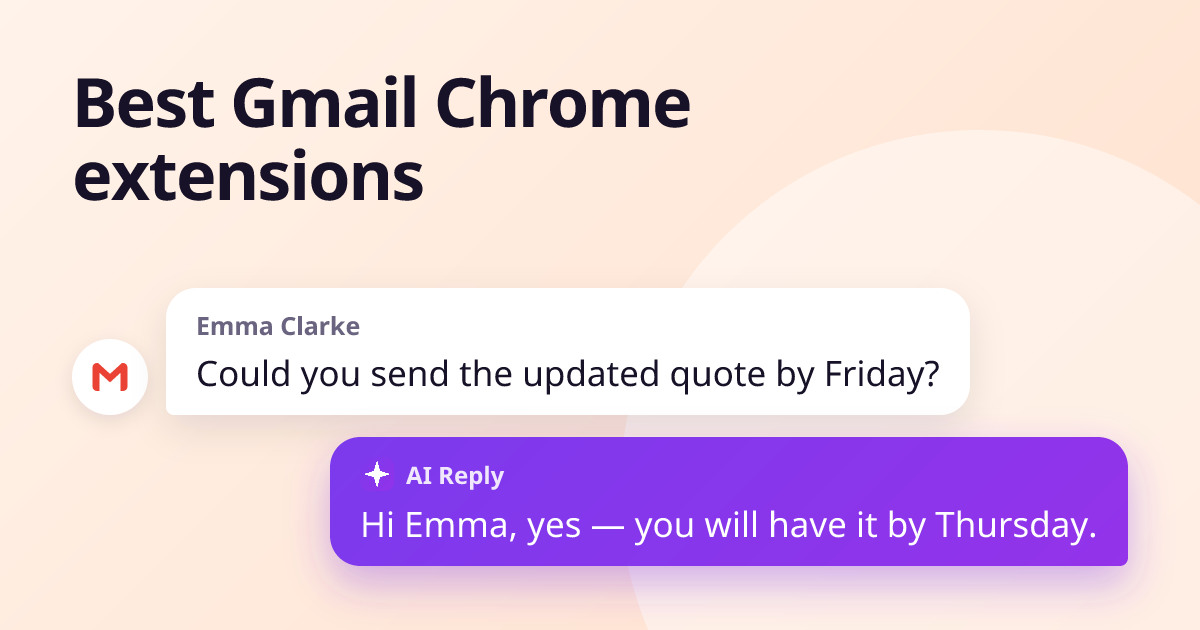
AI Reply Writer adds an ✦ AI Reply button to Gmail's reply box. It reads the email thread you have open — including who sent it and what they asked — and drafts a reply in the tone and length you pick. You edit the draft and send it yourself; it never sends anything for you. The same button works on 23 sites, including Outlook, LinkedIn and WhatsApp Web, and the free plan includes 20 replies a month.
Good for: people who answer a lot of email and lose time on the first draft.
2. Grammarly — grammar, spelling and tone
Grammarly checks your spelling, grammar and clarity as you type in Gmail and suggests rewrites. It is the best known writing assistant and has a free version.
Good for: catching mistakes in emails you write yourself. If you want alternatives, see our list of Grammarly alternatives.
3. Gmail's built-in "Help me write"
Depending on your Google account and plan, Gmail may offer its own AI writing features. Check your Gmail settings before installing something that duplicates them.
Tracking and following up
4. Mailtrack — read receipts
Mailtrack shows check marks on emails you send, so you can see whether and when they were opened. Useful for sales and for knowing when to follow up. Be aware that open tracking is not perfectly reliable, and some recipients consider it intrusive.
5. Boomerang for Gmail — schedule and remind
Boomerang lets you schedule an email to send later, and bring a message back to your inbox if nobody replies by a date you choose. It is the classic "do not let this thread die" tool.
Tip: Gmail now has its own "Schedule send" and "Snooze" — try those first if scheduling is all you need.
Managing work inside the inbox
6. Streak — a CRM inside Gmail
Streak turns email threads into deals or cases in pipelines that live inside Gmail, so a small team can track leads without a separate CRM.
7. Todoist for Gmail — emails into tasks
Turns an email into a task with a link back to the thread, so "I need to reply to this properly" does not get lost under new mail.
8. Loom — video instead of a long email
Record a short screen or camera video and drop the link into an email. Faster than writing out a complicated explanation.
Focus and a cleaner inbox
9. Checker Plus for Gmail — notifications without the tab
Shows new mail from the browser toolbar and lets you read, archive or delete without opening Gmail — handy if an open inbox tab distracts you.
10. Simplify Gmail — less clutter
Hides much of Gmail's interface chrome so the messages themselves take the screen. A matter of taste, but popular with people who live in their inbox.
Keeping your inbox safe
- Install extensions only from the Chrome Web Store, and only from developers with a website and a privacy policy.
- Fewer is better. Every extension with access to Gmail is one more company that can see your email.
- Remove extensions you stopped using at chrome://extensions.
- For work accounts, check whether your company allows extensions — some block them through policy.
If you need help writing replies in other apps too, see how to polish a message before you send it. For what to write when nobody answers, see follow-up email templates.
Frequently asked questions
Are Gmail Chrome extensions safe?
Extensions from the Chrome Web Store are reviewed by Google, but an extension that works inside Gmail can usually read the emails on screen. Install only the ones you need, from developers with a clear privacy policy, and remove the ones you stop using.
What is the best Gmail extension for writing replies?
For drafting a full reply from the conversation, an AI reply tool such as AI Reply Writer saves the most time. For checking emails you write yourself, a grammar checker such as Grammarly is the usual choice.
Do Gmail extensions work in the Gmail mobile app?
No. Chrome extensions run in the Chrome browser on a computer. They do not work inside the Gmail app on a phone.
How do I remove a Gmail extension?
Open chrome://extensions in Chrome, find the extension, and click Remove. You can also turn it off with the toggle if you only want to pause it.